Tech blog
Passthrough for HDD/SSD/Physical disks to VM on Proxmox VE(PVE)


1 Install lshw on PVE
1.1 Bring up the terminal from PVE directly or via SSH or by using "Shell" from PVE web GUI
1.2 Enter the following command to install lshw
apt install lshw2 Check & note down details about physical disks we want to passthrough
2.1 Using the following command
lshw -class disk -class storage
...
*-disk
description: ATA Disk
product: SHdi1uhJ-128s
vendor: Wester Digital
physical id: 0.0.0
bus info: scsi@2:0.0.0
logical name: /dev/sdb
version: DC09
serial: SJFhf7219
size: 15000GiB (15TB)
configuration: ansiversion=5 sectorsize=512
...
We should use disk by their ID rather than name (/dev/sda) which can change and will cause trouble
2.2 Use the following command to list all physical disk IDs
ls -l /dev/disk/by-id/2.3 Now we need to find the one that matches the "product" or "serial"
as shown below -
..... /dev/disk/by-id/ata-xxxxxxxxx-xxxxx_xxx ......Or you could try
ls -al /dev/disk/by-id | grep SHdi1uhJ
or
ls -al /dev/disk/by-id | grep SJFhf7219
3 Add the disk to VM
3.1 Bring up the terminal or shell for the PVE host again
3.2 Execute the following command
qm set 100 -scsi1 /dev/disk/by-id/ata-xxxxxxxxx-xxxxx_xxxThe output should look like this:
update VM 100: -scsi1 /dev/disk/by-id/ata-xxxxxxxxx-xxxxx_xxx100: The VM id which can be found from PVE web GUI (besides the VM's name)
scsi1: The virtual port number that the disk will be used to attach to the VM
For example, in the following configuration, the disk is attached by using -scsi0, if we want to attach another disk, we can use -scsi1 or -scsi2 or -scsi3 etc.....
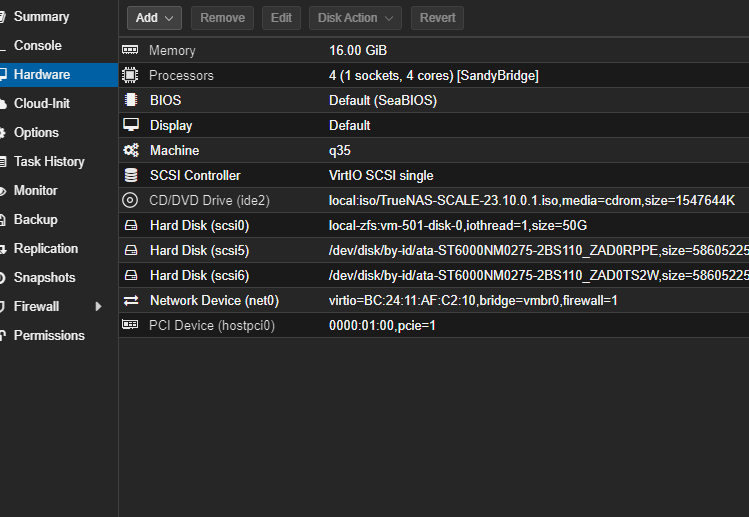
4 Check if the disk attached successfully
grep SHdi1uhJ /etc/pve/qemu-server/100.confReferences
"Physical disk to kvm - Proxmox VE", Pve.proxmox.com, 2020. [Online]. Available: https://pve.proxmox.com/wiki/Physical_disk_to_kvm
Comments
0 total