An invitation to test a NAS operating system is usually enough to get my attention. That's how FygoOS ended up on my list.
My homelab already runs Proxmox and TrueNAS, so I'm not short of ways to store files or spin up another service. Still, I wanted to see what FygoOS offers and whether it could make sense for someone building a home server.
This is a look at its features and what I'm planning to test. Performance, stability and whether I'd trust it with my own data will need some actual time in the lab.
What is FygoOS?
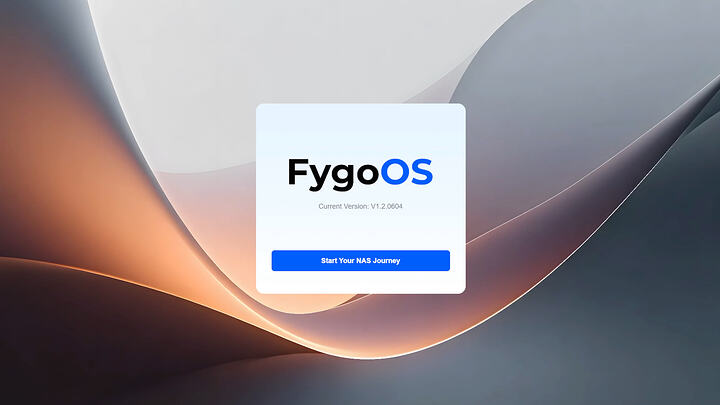
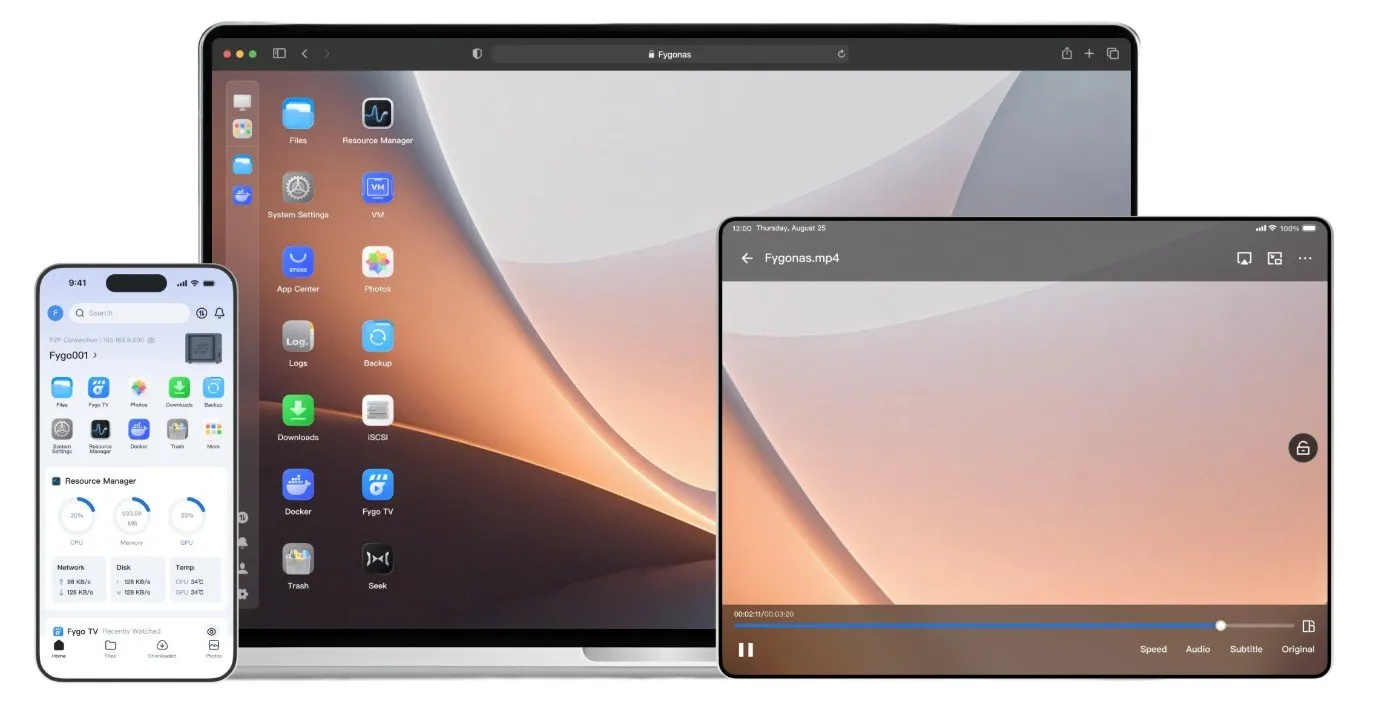
FygoOS is a Debian-based NAS operating system that brings storage management, file sharing and applications into a browser interface. It supports Intel and AMD x86 hardware, with ARM options available for supported devices. ARM compatibility is something to check for your particular board before downloading an image.
The appeal is easy to understand. Building a NAS from spare hardware gives you flexibility, but managing the software can become another project. FygoOS aims to put more of those jobs in one place.
That interests me, especially for smaller setups where a dedicated hypervisor, separate NAS and several application VMs would be more than someone needs.
Storage comes first
FygoOS supports ext4, Btrfs and ZFS. Its published storage options include mirrors and several RAID configurations, including RAIDZ1, RAIDZ2 and RAIDZ3 for ZFS. It also lists SSD caching and external storage support.
Having a choice of file systems is useful. I'd want to understand how each option is presented in the interface, which settings are exposed and what happens when something goes wrong.
Creating a pool is the easy part of a storage test. I'm more interested in replacing a failed disk, checking the warnings and seeing how clearly the system explains the recovery process.
For my first tests, I'll use disposable virtual disks. That should let me explore the storage workflow without involving any existing data.
File sharing and permissions
The supported protocols include SMB, NFS, WebDAV, FTP and DLNA. FygoOS also provides team folders, remote mounts and external file sharing.
SMB and NFS are the ones I'd spend most of my time with. They're already part of my setup, so they provide a useful starting point for checking how FygoOS fits alongside other machines.
Permissions will be another priority. I want to know how straightforward it is to create a restricted account, give it access to one folder and confirm it can't browse anything else. Those details matter more to me than how quickly I can create an administrator account.
Docker and virtual machines
FygoOS includes Docker support and offers a virtual machine application, although the VM application is listed among the advanced features unavailable on the Free plan. Docker is listed as a basic application.
For a small home server, being able to run containers alongside storage is appealing. It could cover file sharing and a handful of services without needing another machine.
In my own lab, Proxmox already handles virtualisation. I'm interested in FygoOS primarily as a NAS, but I'll still look at container management: persistent storage, network configuration and how much control the interface gives you.
I'd also want to check how easy it is to recover an application after a configuration mistake. Anyone who experiments with containers will eventually give themselves a reason to find out.
Photos, media and synchronisation
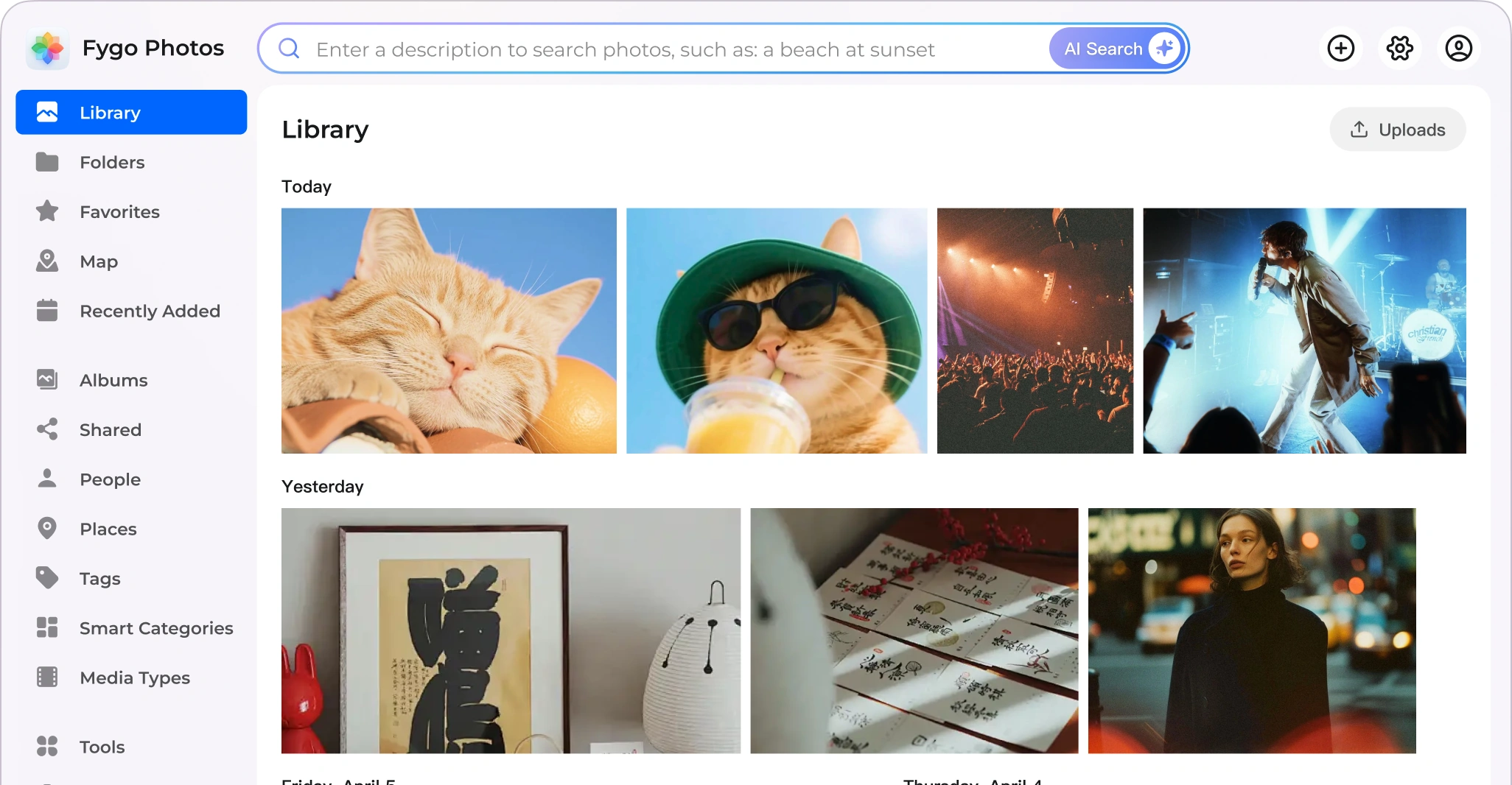
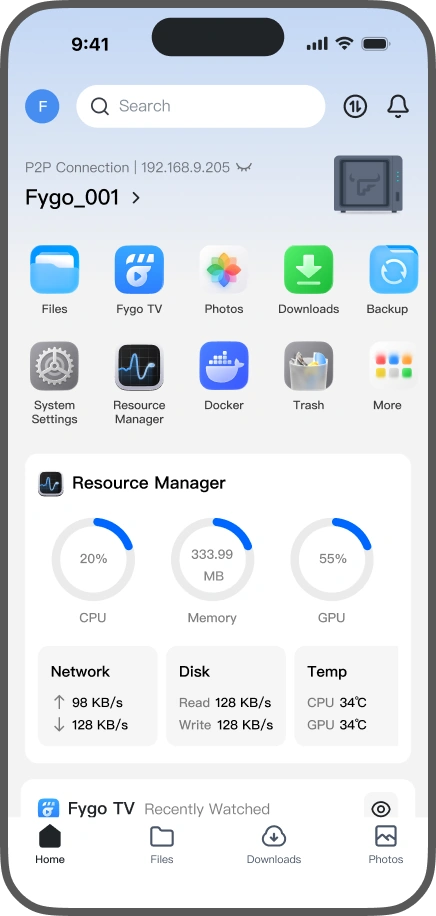
The application side includes Fygo Photos, Fygo TV and Fygo Sync. Fygo advertises phone photo backups and local AI processing for features such as face recognition and text-based photo search. These applications sit in the advanced feature tier.
I already use Immich and Jellyfin, which gives me a reason to look beyond the feature list. With photos, I'd want to check whether uploads are reliable, how duplicates are handled and whether finding an older picture is actually easier.
For media, playback compatibility and library organisation would be my starting points. Having a built-in application is convenient, but I'd need a good reason to move away from something that already works.
Fygo Sync is another feature I'm curious about. File synchronisation can be useful across several devices, but I'd want to test conflict handling and recovery before relying on it for everyday files.
Remote access
FygoOS offers its own remote access service, FygoConnect, alongside options involving public IP addresses, DDNS and certificates. Its documentation also describes P2P connectivity.
I can see the appeal of a built-in connection service, particularly for someone who doesn't want to configure remote access themselves.
For my testing, access will stay local. I'd rather get comfortable with accounts, permissions and updates before making a new NAS installation reachable from outside the lab.
The licence deserves a read
FygoOS has Free, Trial, Plus and Lifetime options. The Free plan allows up to three users and four storage devices, while Plus and Lifetime remove those limits and include full App Center access. There is also a 30-day trial.
One detail worth checking before committing is what happens when a licence expires. Fygo's FAQ says Trial and Plus installations fall back to the Free plan, and applications installed from App Center become unavailable.
That would affect how I use it. A temporary licence is fine for evaluation, but I'd decide on the long-term plan before making those applications part of my daily setup.
What about security?
Before accepting the invitation, I wanted to establish whether FygoOS had a real product and support presence behind it. There is a public testing programme, a documentation site, security advisories and a vulnerability reporting programme. Those are encouraging signs.
FygoOS is commercially licensed and includes proprietary software. It publishes source downloads for components including the Linux kernel and Samba, but that doesn't make the complete system open source.
I'm comfortable exploring it with test data. Trusting it with personal files and backups would take longer. I'd want to see how updates behave, what connections it makes and how well recovery works after a failure.
Where it could fit
FygoOS looks interesting for someone who wants to build a NAS using their own hardware and manage storage, containers and personal media through one interface.
For my setup, the next step is a Proxmox VM with separate virtual disks and a few disposable files. I'll start with shares and permissions, then move on to storage recovery and applications.
The question I want to answer is fairly ordinary: once the setup is finished and the novelty wears off, is it a system I'd be happy to maintain?
That's what the testing is for.
What does FygoOS offer?
FygoOS is a Debian-based NAS operating system with a browser interface for managing storage, shares and applications. It supports Intel and AMD x86 systems, plus selected ARM hardware. Check support for your specific ARM board before choosing an image.
The feature list covers quite a lot of what people usually build a home server for:
Storage: ext4, Btrfs and ZFS, with various RAID options.
File sharing: SMB, NFS, WebDAV and FTP.
Applications: Docker, backups and downloads.
Personal media: Fygo Photos, Fygo TV and Fygo Sync.
Virtualisation: a virtual machine application.
Remote access: FygoConnect, DDNS and P2P options.
Availability depends on the licence, particularly for the media, sync and virtual machine applications.
Having everything in one interface could be useful for a smaller setup. A machine that handles shared files, phone backups and a few containers is enough for plenty of households.
For my own lab, I'm more interested in how well each part works than how many applications appear in the menu.
Storage, shares and everyday use
The choice between ext4, Btrfs and ZFS caught my attention. FygoOS advertises ZFS mirrors and RAIDZ configurations, alongside other storage options and SSD caching.
I'll be looking at the less exciting jobs: replacing a disk, understanding an alert and recovering after a mistake. Creating a pool is only the beginning.
SMB and NFS are also high on my testing list because I already use both. I want to check permissions with ordinary user accounts, rather than doing everything as an administrator and assuming it works.
On the application side, Fygo Photos offers phone backups and local AI features, including face recognition and text-based search. Fygo TV handles media, while Fygo Sync covers file synchronisation.
I already run Immich and Jellyfin, so I'm curious about those applications without having an immediate reason to migrate. Reliable uploads, sensible permissions and straightforward recovery would matter most to me.
Installing FygoOS on Proxmox
A VM is where I'd start. It gives me somewhere to explore the installer and storage tools using disposable disks.
Fygo publishes a Proxmox installation guide, so this is a documented installation route. The configuration below is my suggested starting point for testing, rather than the minimum requirement.
CPU: 4 cores, 1 socket
CPU type: host
Memory: 8 GB, ballooning disabled
System disk: 80 GB
Test data disks: 3 50 GB virtual disks
Disk bus: SCSI
SCSI controller: VirtIO SCSI single
Network adapter: VirtIO
Network connection: Isolated test VLAN or subnet
Installation media: Official FygoOS x86-64 ISO
I'd increase memory to 16 GB when testing several applications alongside ZFS. The three data disks are there to explore storage layouts; they don't provide physical redundancy when they share the same underlying storage.
1. Download and attach the ISO
Download the x86 installation ISO from the official FygoOS website:
https://fygonas.com/
In Proxmox, select storage that supports ISO images. Open ISO Images, click Upload and upload the downloaded ISO.
Click Create VM, give the VM a name and select the uploaded ISO as its installation media.
Assign the CPU, RAM and system disk. You can leave the data disks until after installation to make selecting the installation target easier.
2. Run the installer
Start the VM and open its console. Select Graphical Install, choose the system disk and review the partition and swap settings.
Fygo recommends a 64 GB system partition where capacity allows, though its guide permits a smaller partition for VMs. The suggested 80 GB disk leaves additional space for swap and installation overhead.
The selected installation disk will be erased. Confirm the target before continuing. If the installer reports a Secure Boot problem, disable Secure Boot in the VM firmware settings.
3. Configure networking and reboot
Complete the network settings, using DHCP or an appropriate static address. Once installation finishes, detach the ISO and boot from the installed disk. Fygo's Proxmox guide follows this same general process.
For testing, I'd use a separate VLAN or subnet with firewall rules blocking access to my normal LAN and management interfaces. Putting it in a VM alone doesn't isolate its network access.
4. Finish setup in the browser
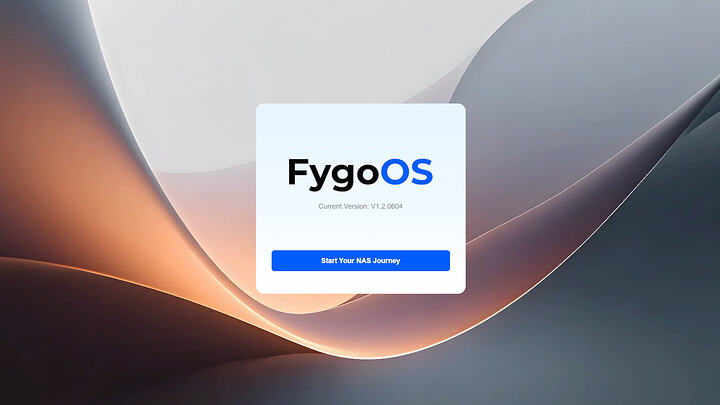
Open the IP address shown in the VM console in your browser. Choose a device name and create the administrator account.
Shut down the VM. In Proxmox, select the VM, open Hardware, click Add and select Hard Disk. Repeat for each test data disk, then start the VM again.
Back in FygoOS, open System Settings, then Storage, to configure your storage.
My first job would be creating a small volume and an SMB share, then checking access with a separate user account. Containers and media applications can follow once the basics work.
Installing on physical hardware
For a spare PC, write the ISO to a USB drive using Rufus or balenaEtcher, boot from it and follow the installer. Fygo recommends an SSD for the system and a wired Ethernet connection during installation. Double-check the destination disk before confirming formatting.
A quick comparison with TrueNAS
Since TrueNAS already handles storage in my lab, it's the obvious reference point. This is a comparison of their approach and documented options, rather than a performance comparison.
Feature | FygoOS | TrueNAS Community Edition
--- | --- | ---
Main focus | Home NAS with integrated apps | ZFS storage management
Hardware | Intel/AMD x86-64 and selected ARM | Intel/AMD x86-64
File systems | ext4, Btrfs and ZFS | ZFS
File sharing | SMB, NFS, WebDAV and FTP | SMB and NFS
Containers | Docker | Docker-based applications
Virtual machines | Trial or paid plan | Supported
Photos and media | Fygo Photos and Fygo TV | Apps such as Immich and Jellyfin
Remote access | FygoConnect or manual setup | Separately configured VPN or other solution
Free limits | 3 users, 4 drives, limited apps | No equivalent user or drive licence limits
Paid options | Plus and Lifetime | Enterprise hardware and support
My usage | Evaluation and testing | Existing homelab storage
These differences are reflected in the vendors' current feature and hardware documentation.
For me, TrueNAS remains the familiar choice for managing storage. FygoOS is interesting because of how much of the home server experience it brings together, particularly photos, media and synchronisation.
Both can run applications and VMs, so I wouldn't choose between them based on those checkboxes alone. I'd look at storage recovery, permissions, backup options and how much maintenance each setup needs.
Check the licence before building around it
FygoOS's Free plan supports three users and four storage devices. The paid plans remove those limits and provide full App Center access.
There's one detail I'd pay attention to during evaluation: Fygo's FAQ says Trial and Plus installations revert to Free when they expire, and applications installed through App Center become unavailable. That's something to account for before relying on a trial application for everyday use.
What I'll be testing next
I'll start with file transfers and permissions, then try snapshots, storage recovery and a few containers. I also want to check update behaviour and see what still works when internet access is removed.
FygoOS has enough on offer to justify a test VM. Whether it earns a permanent place in my lab will depend on how it behaves once I start breaking things.
Comments
0 total